|
Element |
Intended use |
|---|---|
|
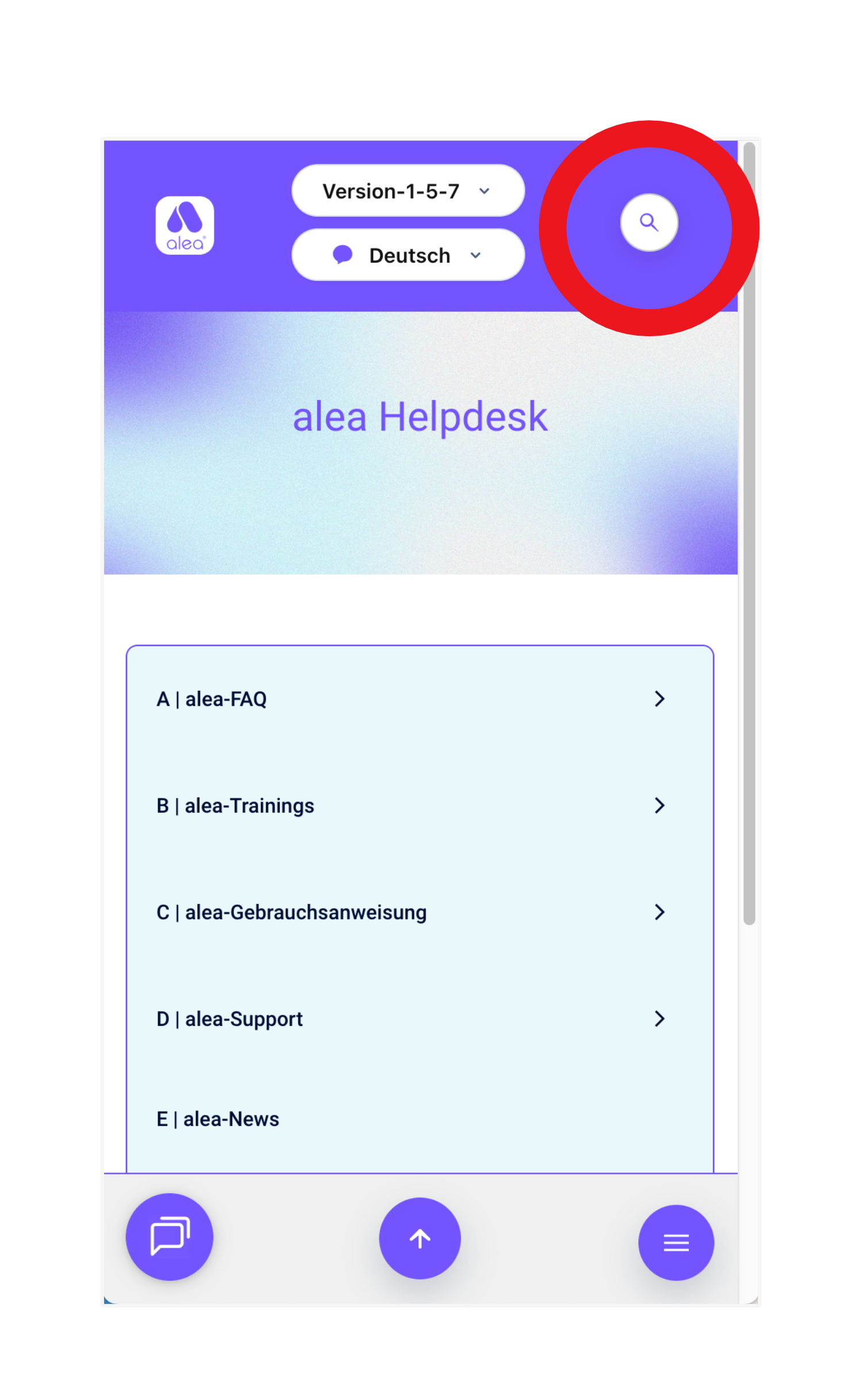
Start search
Click on this button to display the search bar (with optional AI response function, see next steps) |
|
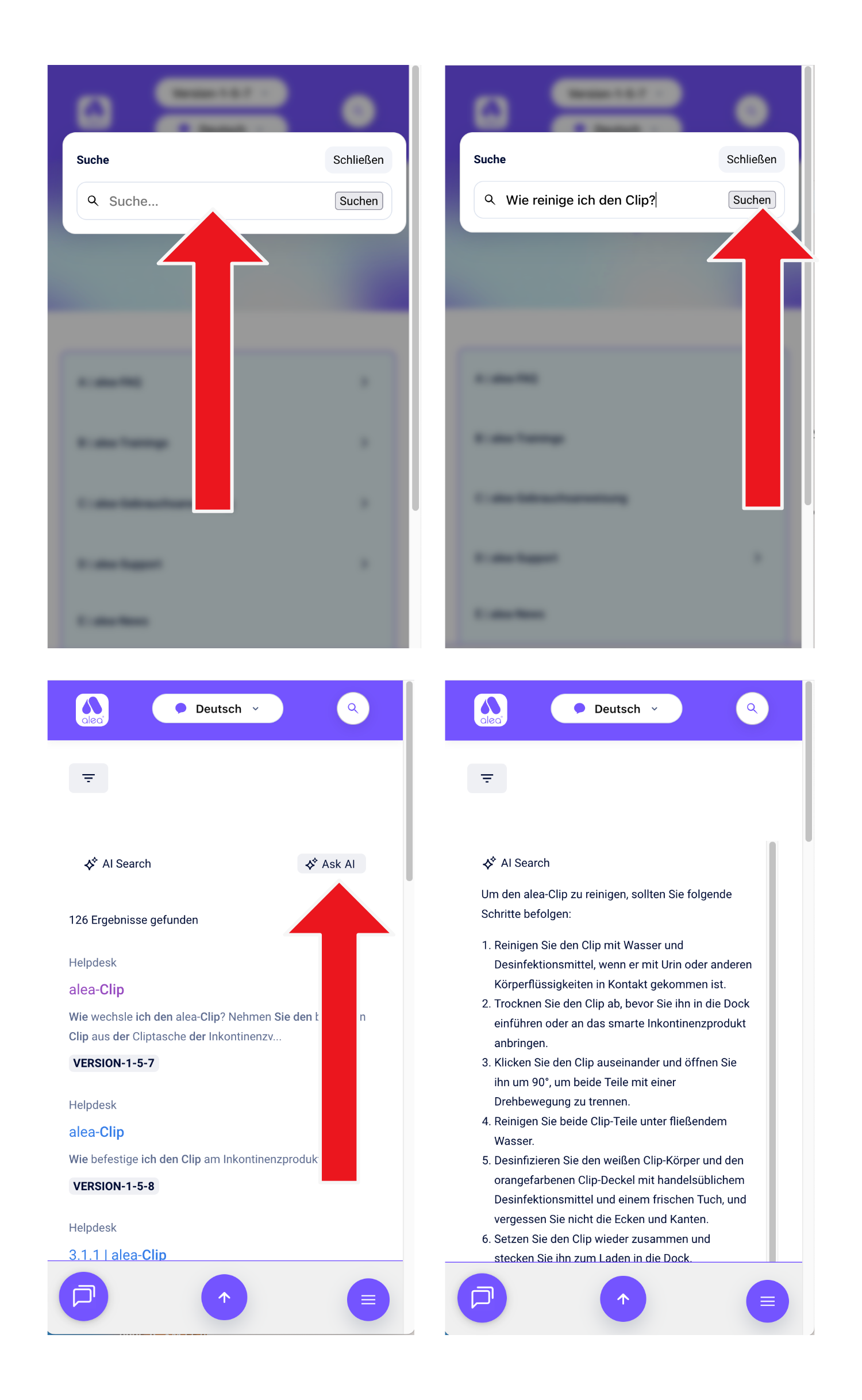
Execute search (with AI option)
|
|
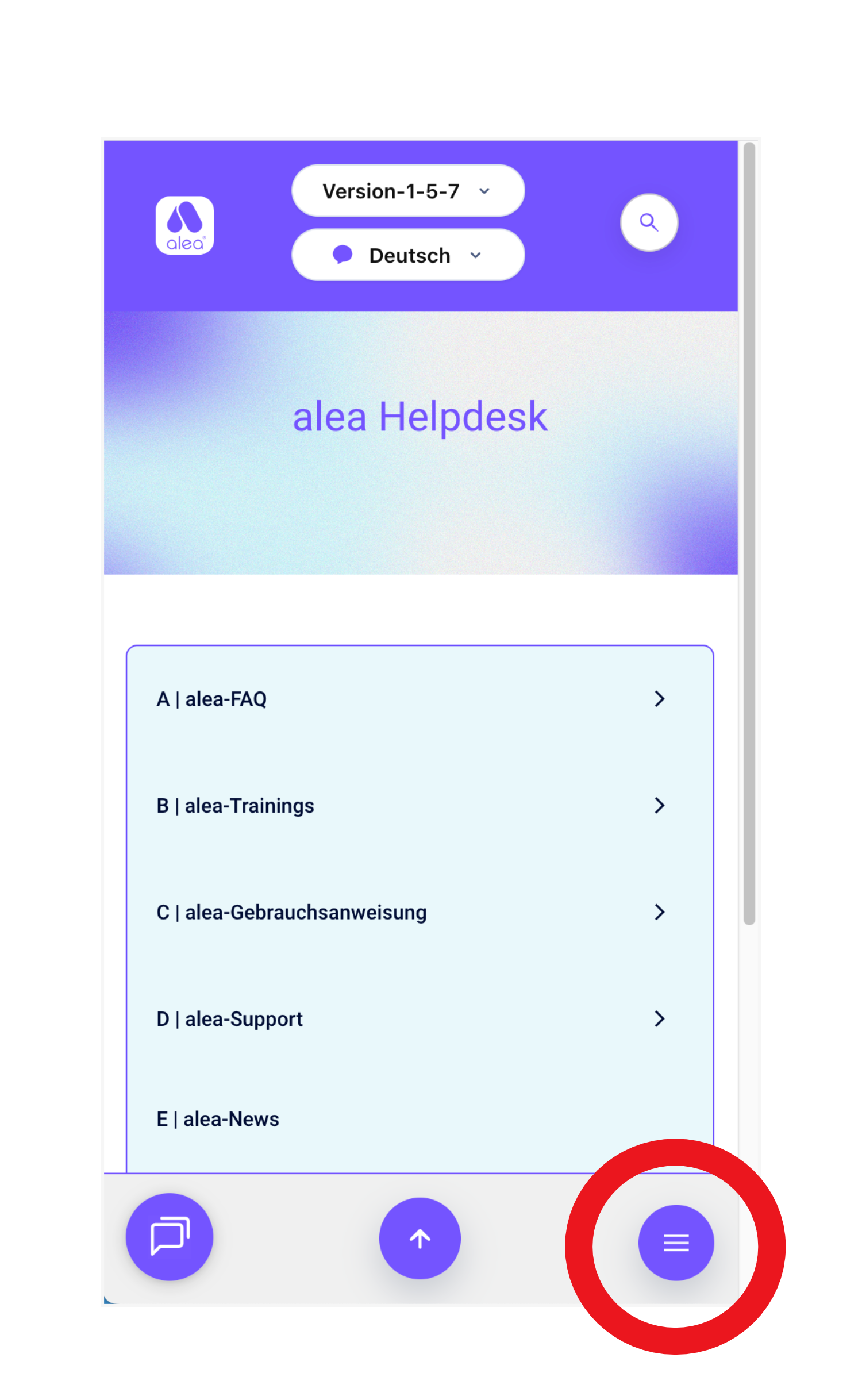
Mobile menu
The menu icon appears in the mobile view. Click on this icon to display the menu with all areas (A-F) and all sub-areas. |
|
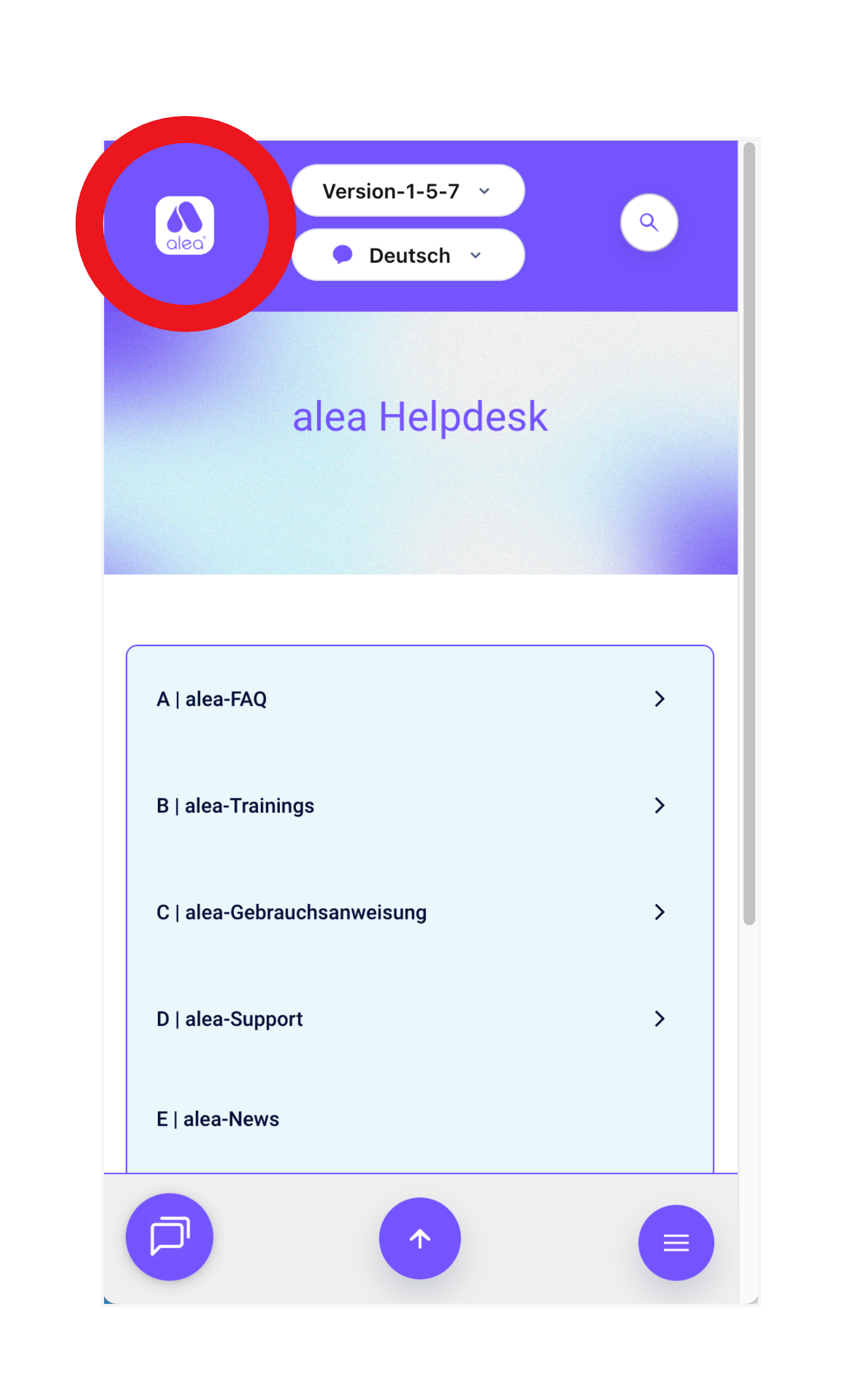
Homepage direct call
Click on this button to open the alea helpdesk homepage - for quick orientation. |
|
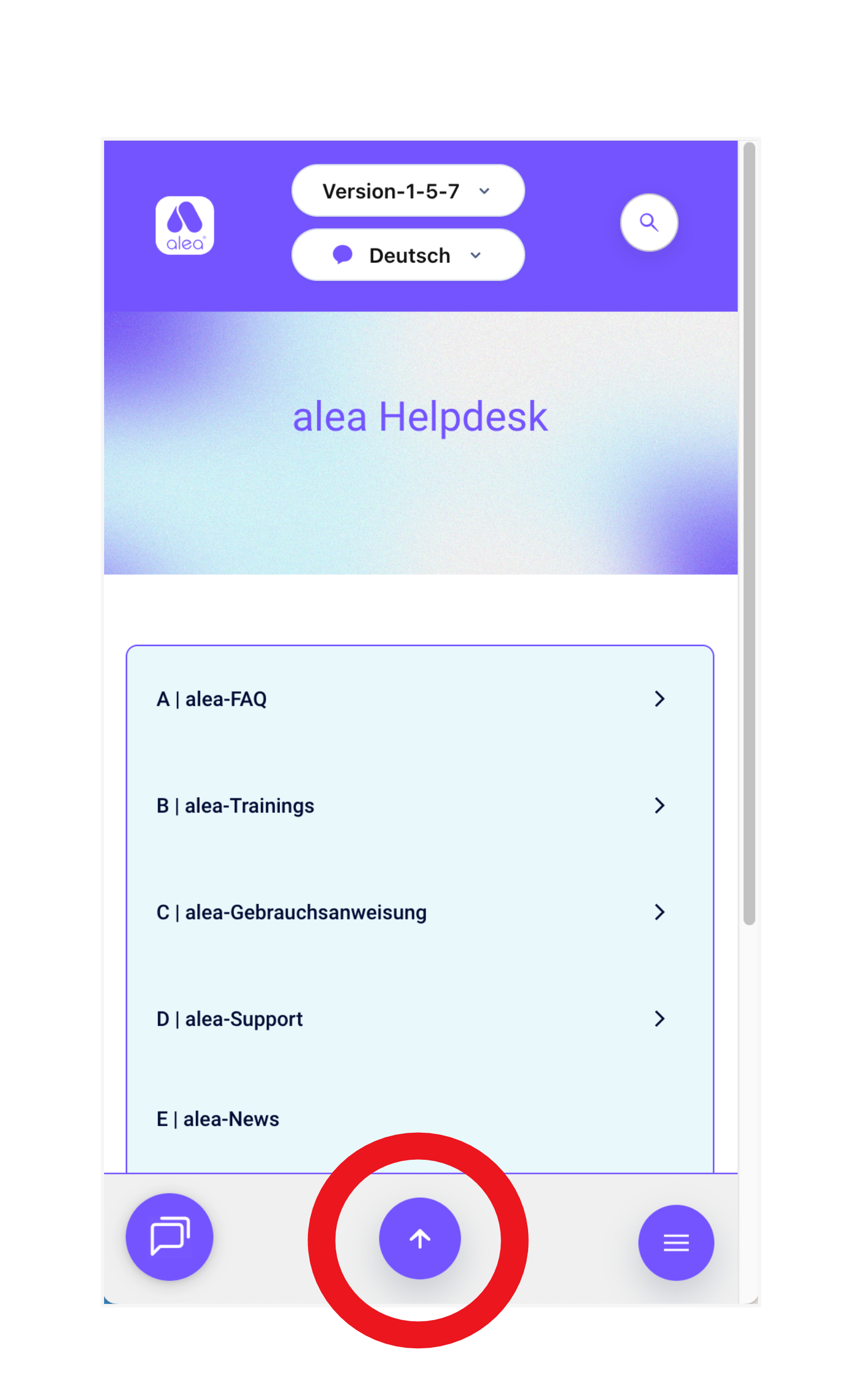
Back to the top of the page
Clicking on this button takes you directly back to the top of the page - for quick access to content-intensive pages and areas. |
|
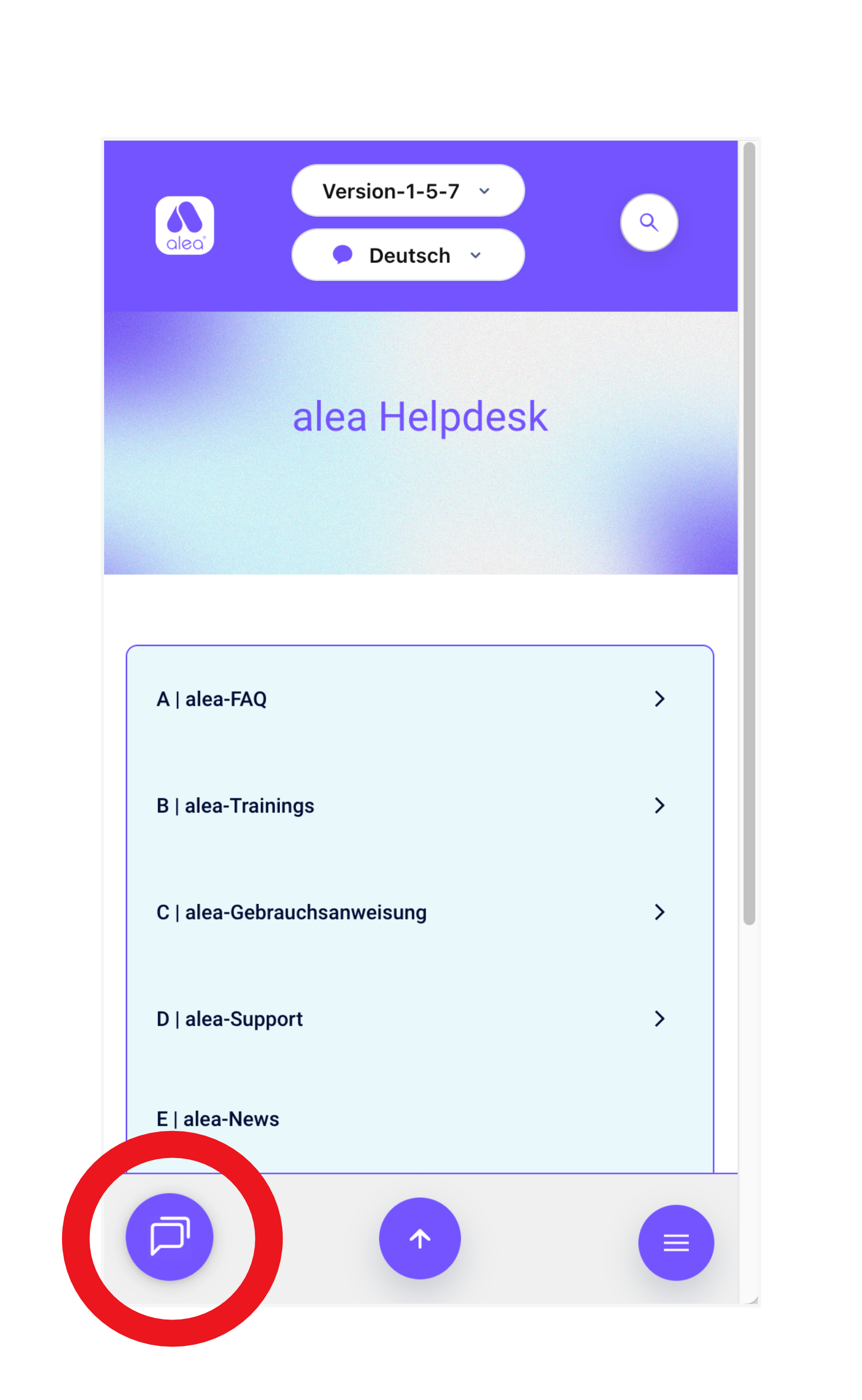
Chat with support
Click on this button to open a chat window where you can ask our support directly and send us specific messages. We usually reply promptly, if you have to wait, you will be given further options in the chat to send us your request. |
|
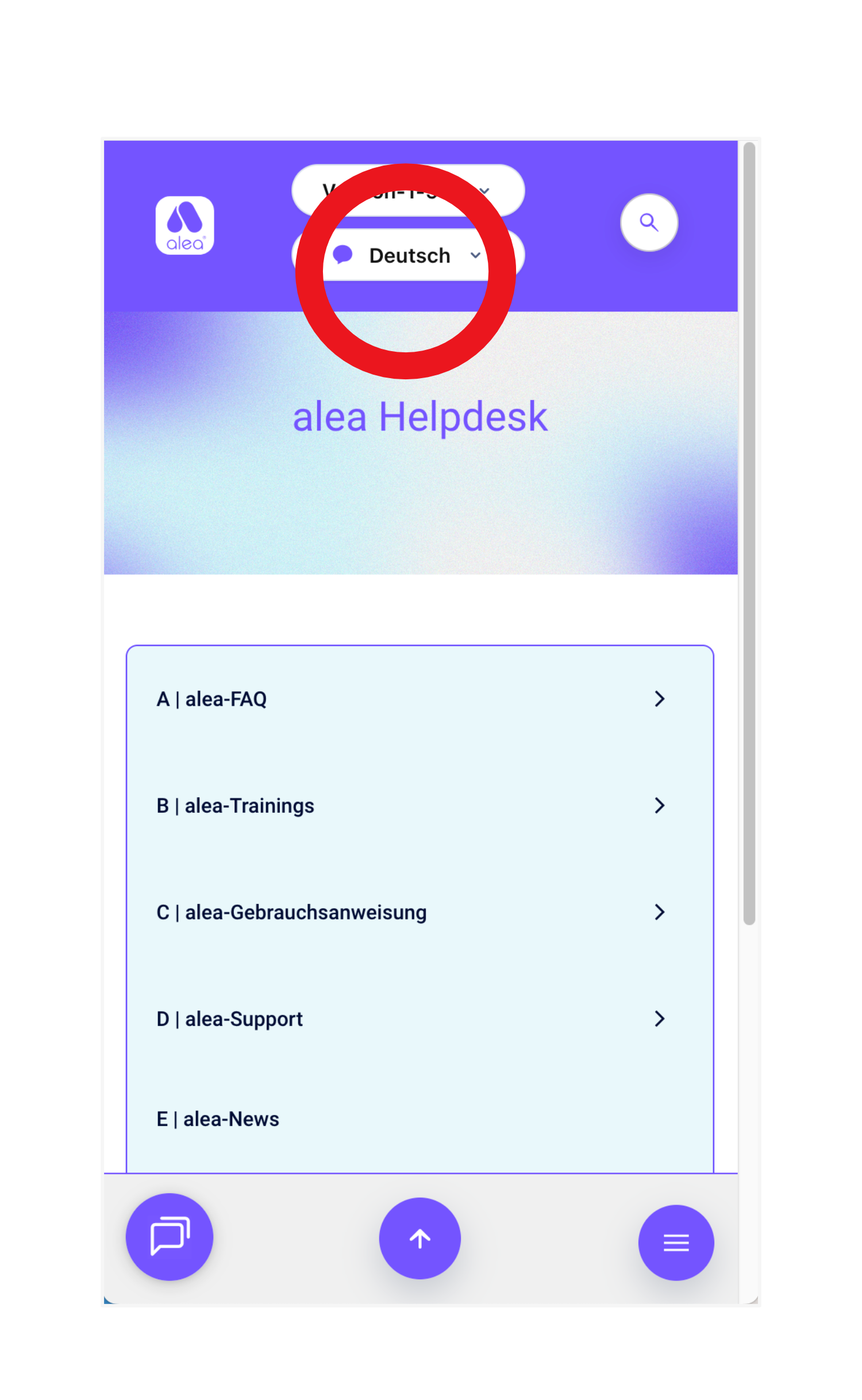
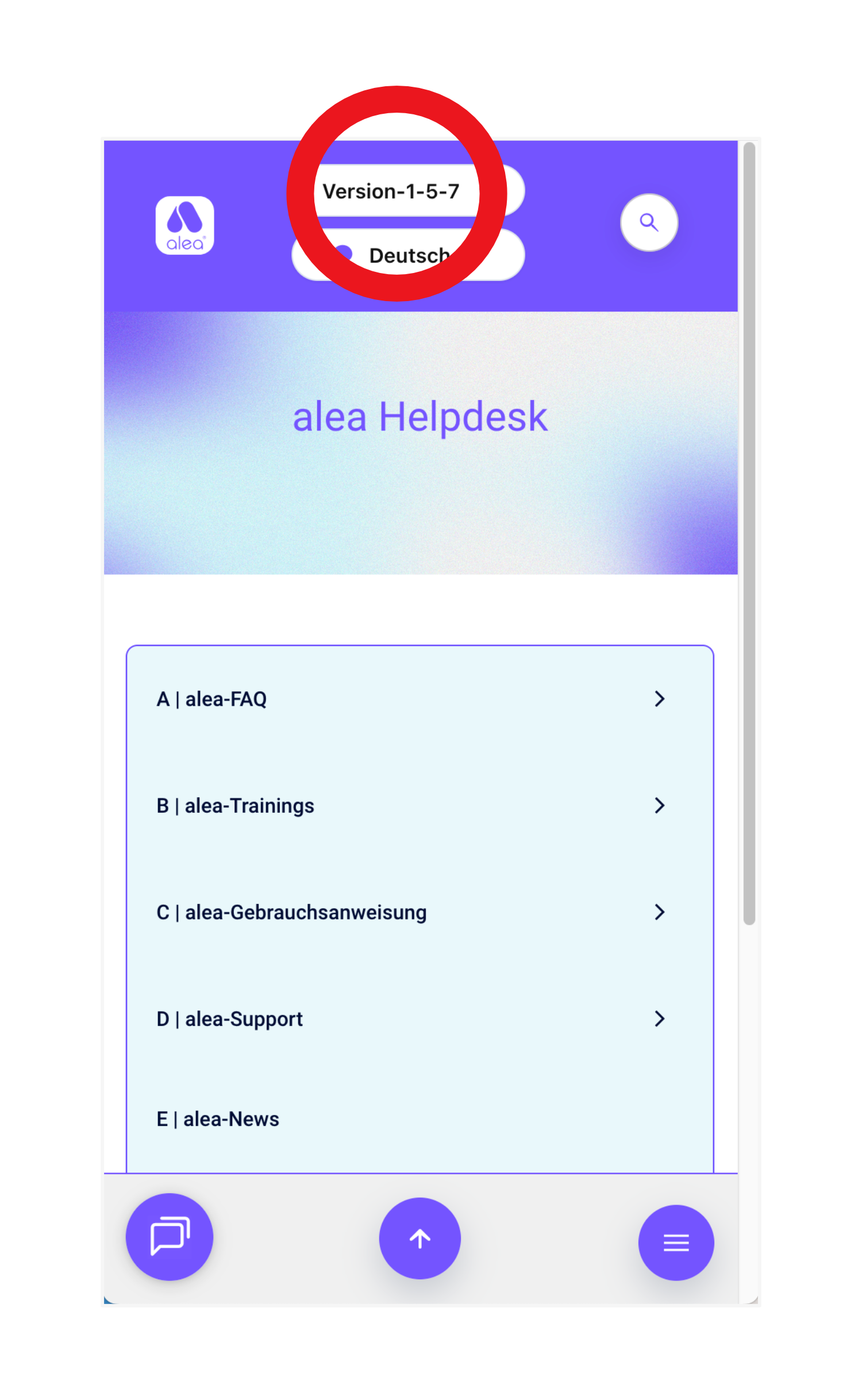
Select language
In the header area of each page you have the option to change the language of the alea helpdesk so that you can read and understand all content in your language. |
|
Optional: Select version
For some, it may be of interest to select the version in order to be able to reproduce certain aspects in an earlier version (which you are already familiar with). This also allows you to see the transparent development of the product and content. |