2.2.6 | Manage hardware

Manage hardware

Step 1 of 2

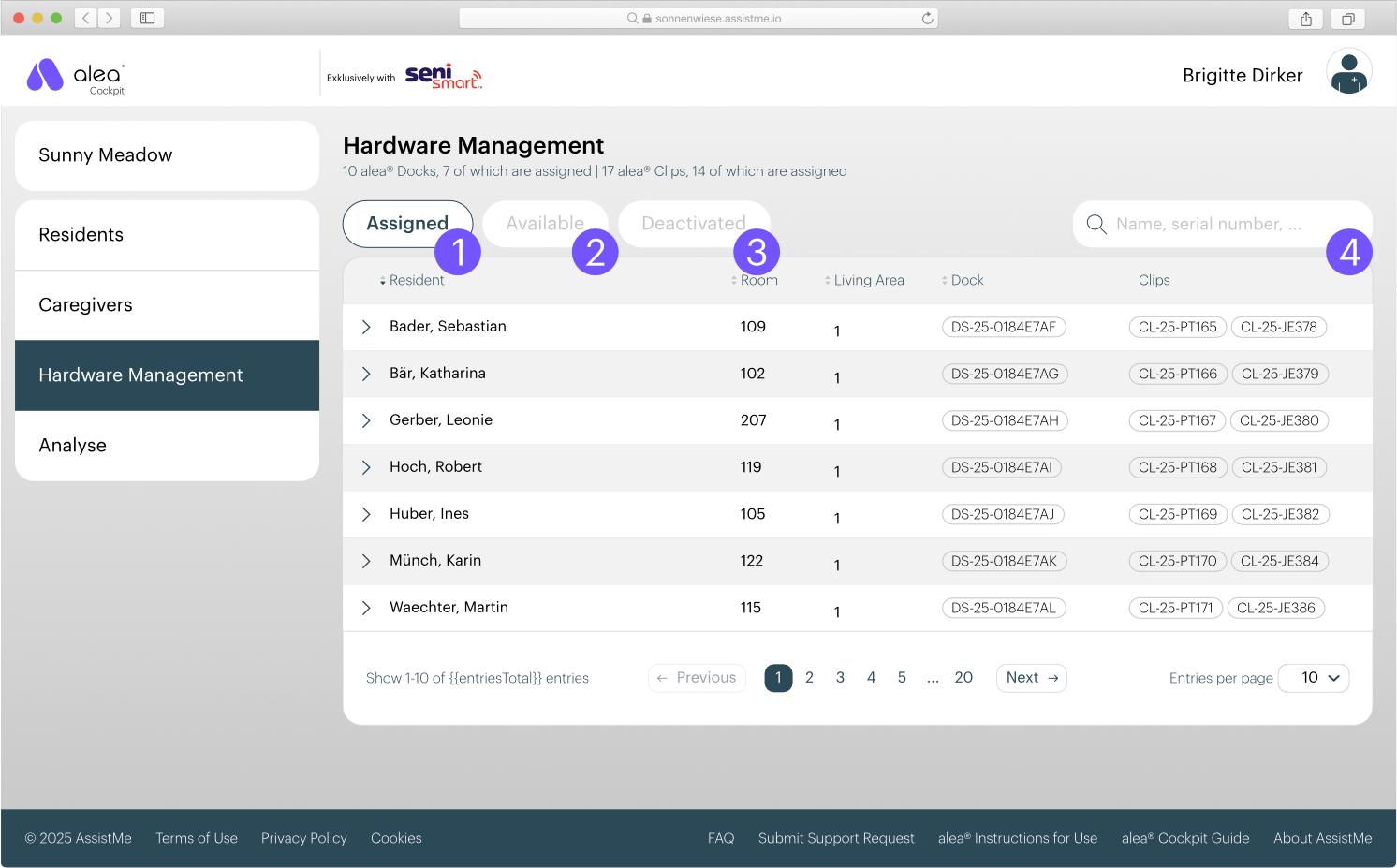
Hardware-Management-marked.png
  • To be able to display the current care status in the alea app for each resident, you must assign the hardware to a resident.

  • The hardware assignment takes place in the Hardware Management tab. The hardware decoupling, i.e. the cancellation of the assignment between hardware and resident, can also be carried out here.

  • The available hardware is differentiated according to

    • Assigned (1): Hardware assigned to a resident

    • Available (2): free hardware

    • Deactivated (3): deactivated hardware (e.g. defective hardware)

  • You can search the lists for a resident name or a hardware serial number (4).

  • Click on a list entry to open the detailed view where you can make changes.

Step 2 from 2

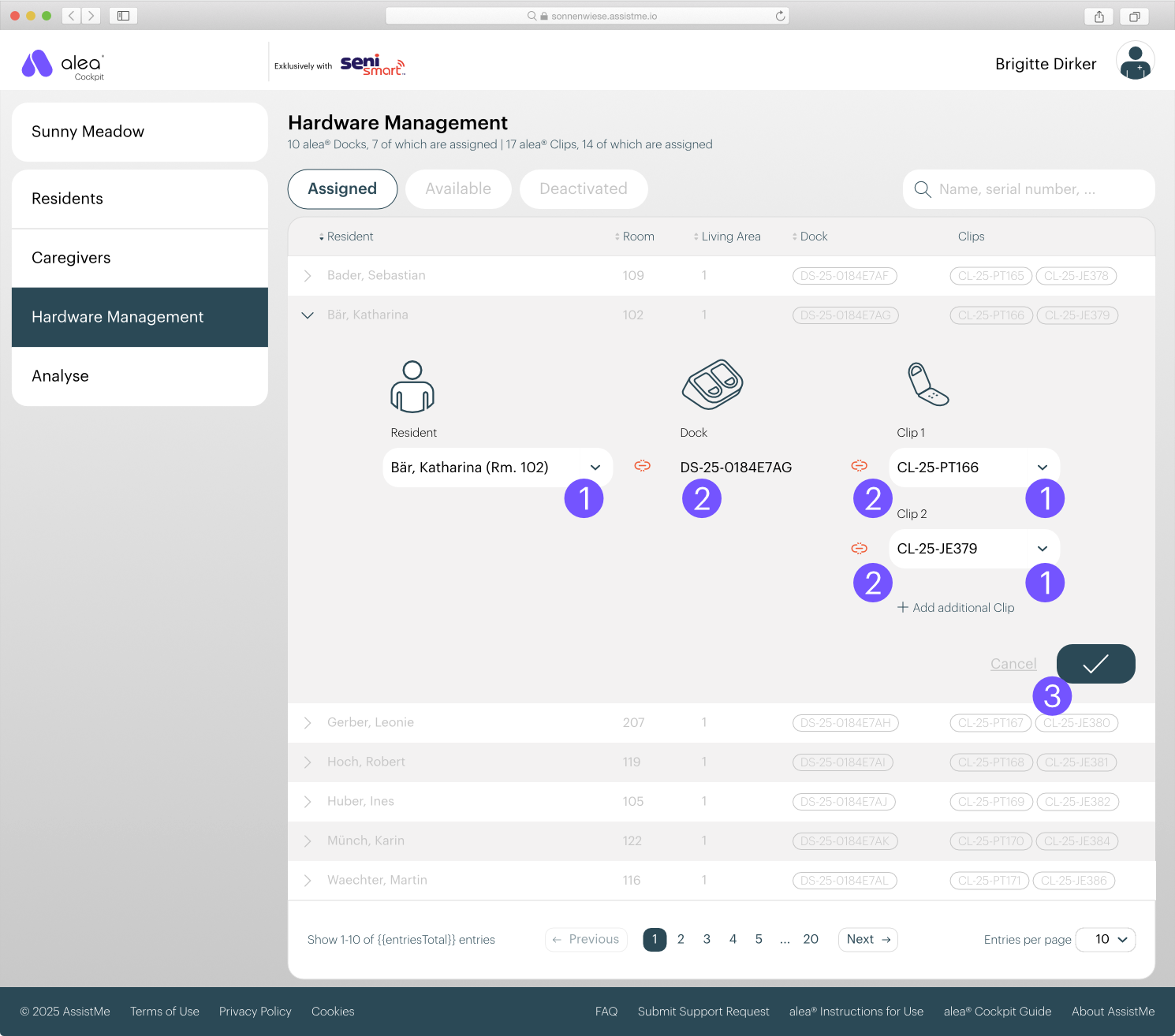
Hardware-Management_assigned_detail-marked.png
  • In the detail view, you can select free residents and clips from the drop-down menu. (1)
    If you want to cancel the assignment, you can do so by clicking on the red unlink icon. (2)

  • Save changes by clicking on the tick button. (3)

Important: A clip is automatically assigned to a resident by inserting it for a few seconds into the dock assigned to the resident in question. This process leads to an automatic connection between dock - clip - resident. You should therefore concentrate on the assignment of residents and docks in hardware management.