Incontinence-Events (Icons)
|
Meaning |
|---|---|
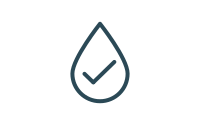
|
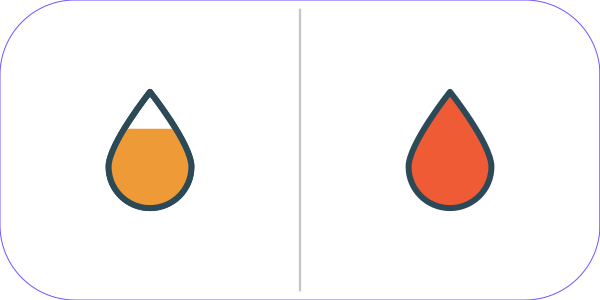
No Urine |
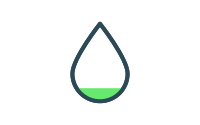
|
Less |
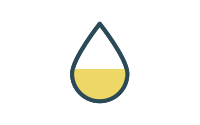
|
Half |
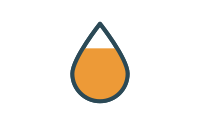
|
Much |
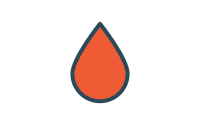
|
Full |
Fall-Event (Icon)
|
Meaning |
|---|---|
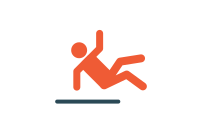
|
suspected fall |
Safe Zone (Icon)
|
Meaning |
|---|---|

|
Leave safe zone |
Battery-Events (Icons)
|
Meaning |
|---|---|
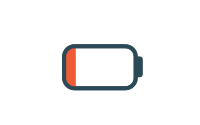
|
Recharge clip battery (remaining charge at 10%) |
|
Clip-Battery empty |
Body-Position Detection (Icons)
|
|---|
|
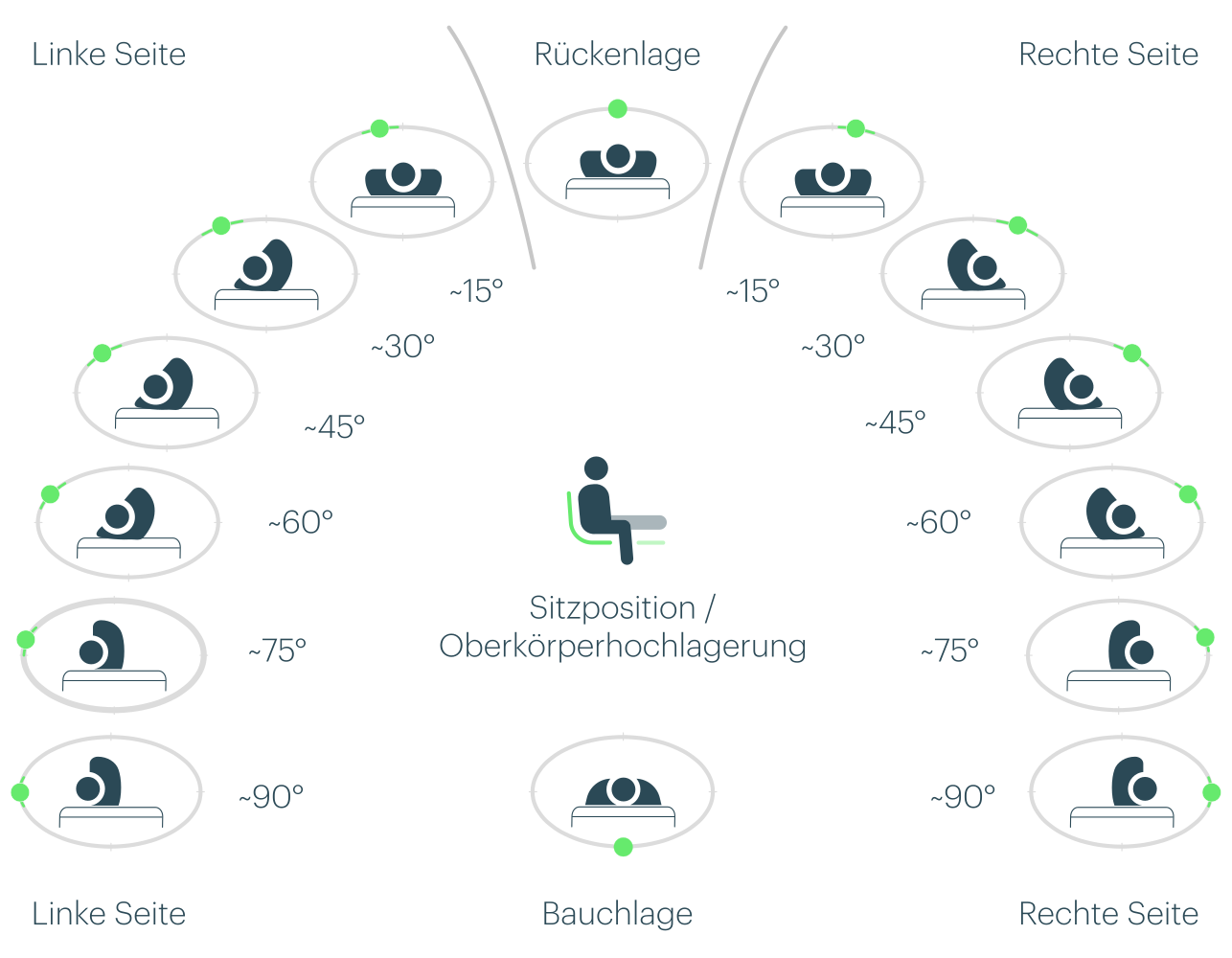
We distinguish between supine and prone positions, right and left sides, and sitting position/upper body elevation. We further divide the right and left sides into 6 positions with varying degrees of rotation. |
|
|
Example |
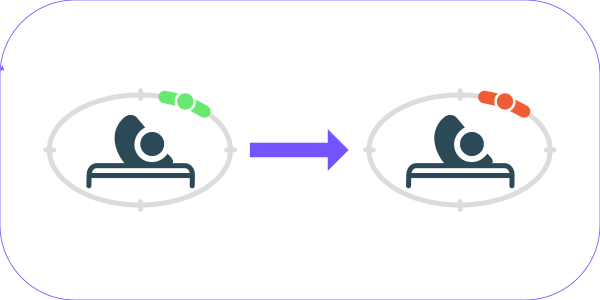
Movement to the right (approx. 30°) → Storage interval reached |
From icon to action
|
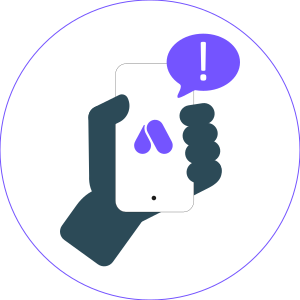
Notification in the alea app -> |
→ Recommended action for caregivers |
|---|---|
|
|
|
|
ICP utilization =
|
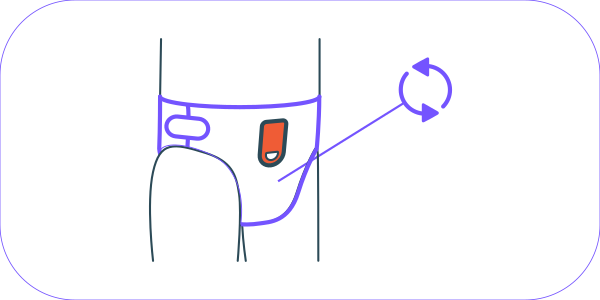
Check the ICP and
|
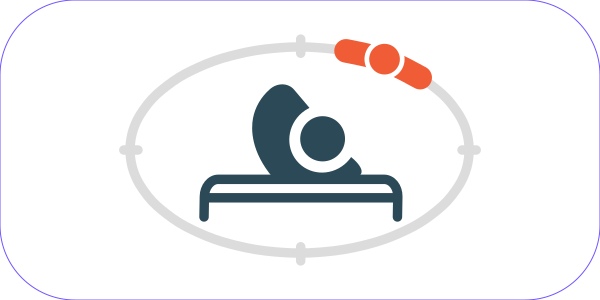
Positioning interval reached |
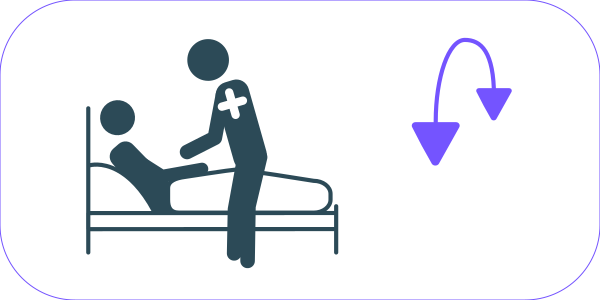
Reposition the resident in
|
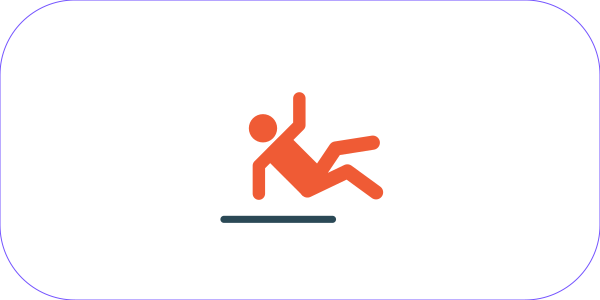
suspected fall |
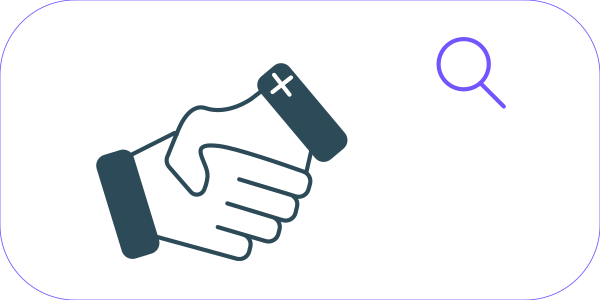
Visit care recipients and provide assistance if necessary |
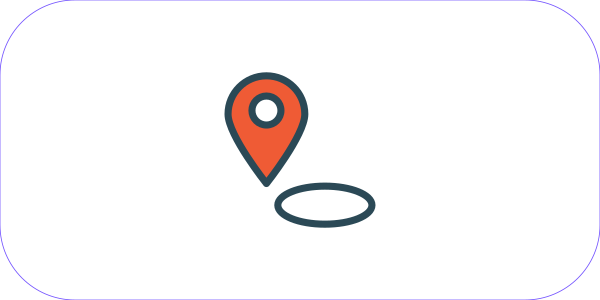
Left safe zone |
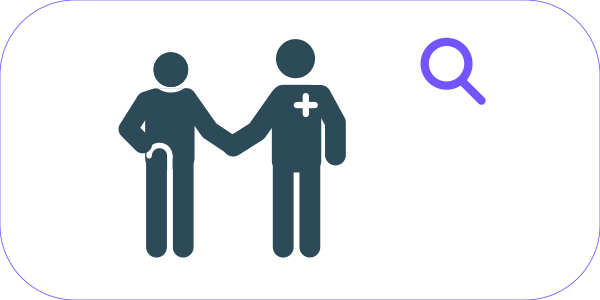
Find care recipients and accompany them back if necessary |
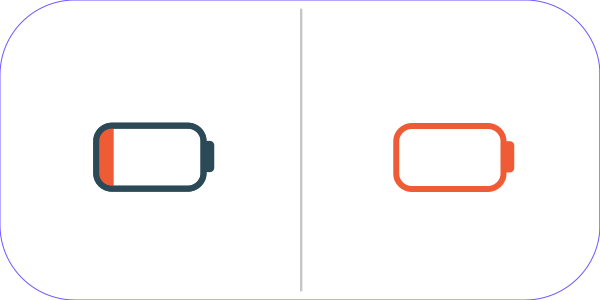
Charge clip | Clip battery empty |
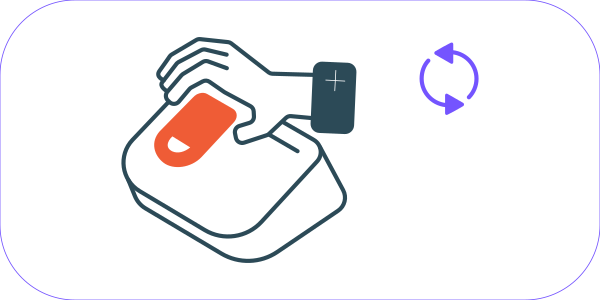
Swap clips and reload (almost) empty clips |
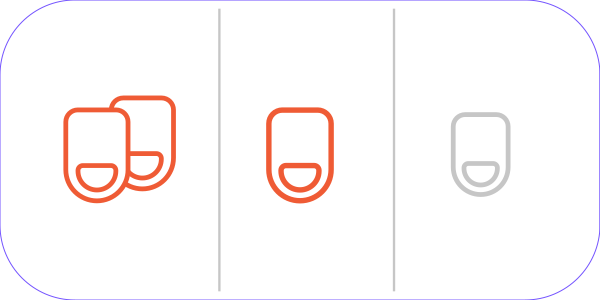
System error symbols: Clip not attached correctly | 2 clips in use at the same time | No clip attached to the ICP) |
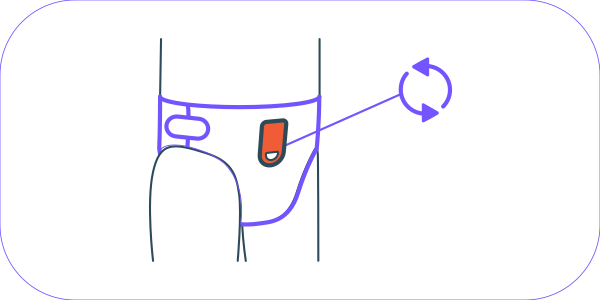
Solutions Check clip on ICP | If necessary, reinsert second clip into alea dock | If necessary, reattach clip
|
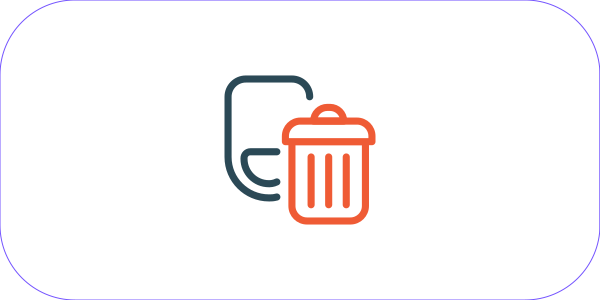
Clip presumably disposed of |
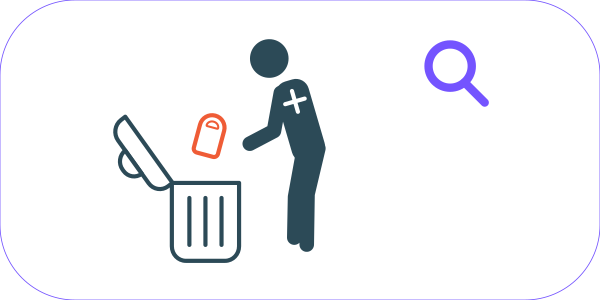
Remove clip from trash |
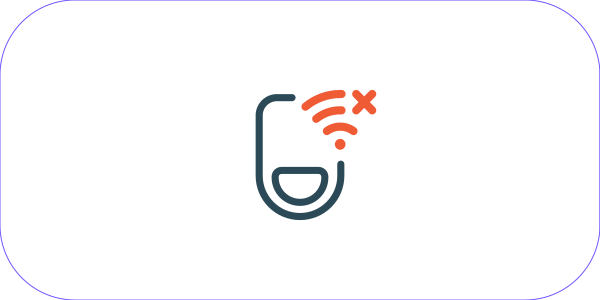
Clip connection faulty |
Reset the clip by plugging it into the alea dock, replace if necessary, and contact support. |
No data connection |
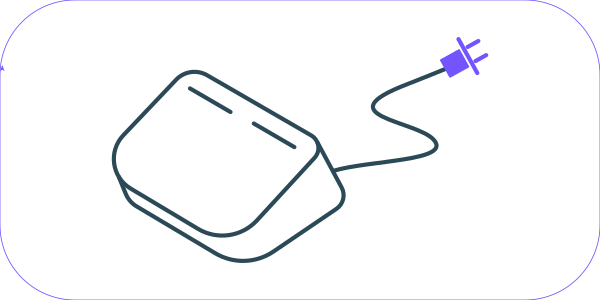
Check the power connection of the alea dock |